Local Hybrid Search with LM Studio and MCP
The hybrid-search article built the full Azure AI Search pipeline from scratch and noted that the exact same code is also packaged as an MCP (Model Context Protocol) server in the companion repository oduenas-enddesk/azure-ai-search-mcp.
In that article, the MCP server was wired into Cursor, which ultimately calls a hosted model. This guide shows how to wire the same server into a fully local stack instead: an open-weights model served by LM Studio acting as the MCP client, the hybrid-search MCP server running in a Docker container on the same machine, and a custom system prompt that replicates the Cursor rule used elsewhere in this series.
The end result is a private, offline copy of the pipeline where no query, no document chunk, and no model inference ever leaves the machine.
No Data Leaves the Machine
The diagram below shows the runtime topology. Everything inside the dashed boundary runs locally; nothing crosses it.
The only time this system touches the internet is during initial setup: downloading the LM Studio installer, pulling the chosen GGUF model weights, and building the azure-ai-search-mcp Docker image. From that point on you can disable the network interface and every step below will still work.
What You Will Build
| Piece | Role | Running where |
|---|---|---|
| LM Studio desktop app | Local LLM runtime + MCP client + chat UI | Your machine |
google/gemma-4-31b (or any tool capable GGUF) | Reasoning + tool-calling model | Loaded by LM Studio |
azure-ai-search-mcp Docker image | Hybrid-search MCP server exposing the search tool | Local Docker |
| System prompt rule | Tells the model to only return the FINAL ANSWER block | Per-chat in LM Studio |
Prerequisites
- Docker Desktop (or any Docker runtime) up and running.
- The
azure-ai-search-mcpimage built locally. Clone oduenas-enddesk/azure-ai-search-mcp and follow the README to build the image, then tag it asazure-ai-search-mcpso themcp.jsonsnippet below works unchanged. - A machine with enough RAM/VRAM to load a 20 GB class model. If that is too large, any smaller tool capable GGUF (for example
gemma-4-4b-itorqwen3-8b-instruct) works the same way.
Step 1: Install LM Studio and Download a Tool Capable Model
Install LM Studio from lmstudio.ai. It is free for personal and work use, runs on macOS, Windows and Linux, and ships with both a GUI and a headless mode.
Once the app is open, use the model browser to search for a tool capable model and download it. Any model with the Tool Use capability badge will work; the screenshot below uses google/gemma-4-31b (staff pick, supports vision, reasoning and tool calls).
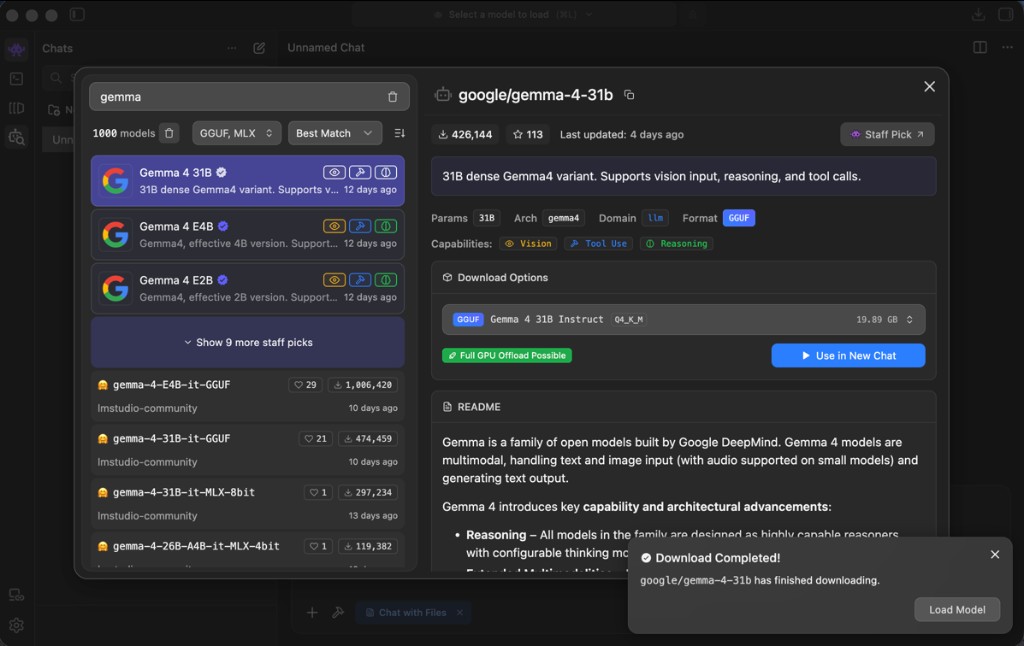
When the download finishes, click Load Model in the toast that appears, or load it later from the model dropdown at the top of the chat window.
If you want to deploy LM Studio's runtime on a server with no GUI, the same core is also available as llmster:
curl -fsSL https://lmstudio.ai/install.sh | bash # macOS / Linux
irm https://lmstudio.ai/install.ps1 | iex # Windows
From there you can also bootstrap the lms CLI for scripting model loads and chats. See the LM Studio docs for details.
Step 2: Register the MCP Server in mcp.json
LM Studio reads MCP servers from a mcp.json file, exactly like Cursor and Claude Desktop do. Open the integrations panel (the wrench icon at the bottom of the chat) and choose Edit mcp.json. Paste the snippet below:
{
  "mcpServers": {
    "azure-ai-search": {
      "command": "docker",
      "args": [
        "run",
        "--rm",
        "-i",
        "azure-ai-search-mcp"
      ]
    }
  }
}
This tells LM Studio to launch the MCP server as a short-lived Docker container whenever the chat needs it, using stdio as the transport. The file should look like this in the editor:
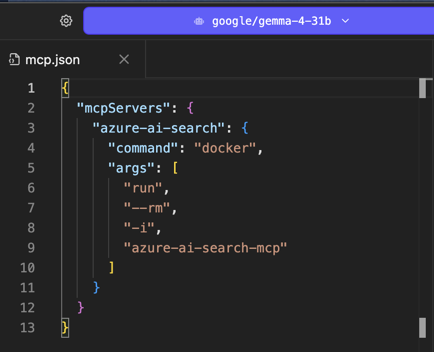
The command and args fields are identical to the mcp.json you would use in Cursor. That is the whole point of MCP: the same server works across any compliant client.
Step 3: Enable the Integration in the Chat
Start a new chat and click the small plug/wrench icon next to the prompt input to open the Integrations panel. You will see azure-ai-search listed alongside any other plugins. Flip its toggle on.
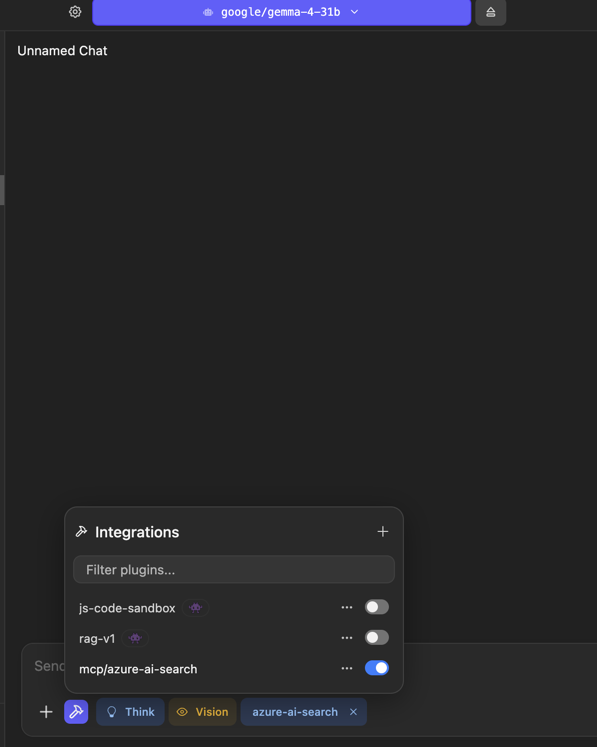
Once enabled, an azure-ai-search chip appears in the prompt bar to remind you the integration is active for this chat. Tool calls from the model will now be routed to the Docker container you configured above.
Step 4: Open the System Prompt Editor
The hybrid-search MCP server is deliberately verbose: it returns the full pipeline trace (Step A language analysis, Step B BM25, Step C vector search, Step D RRF fusion, Step E semantic reranking) and then a FINAL ANSWER block. That is useful when you are learning how the pipeline works, but it is noisy when you just want an answer.
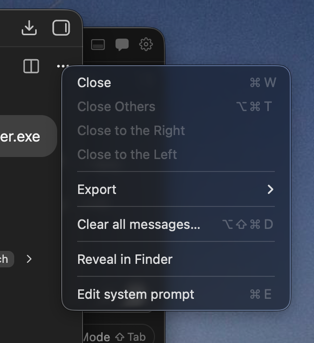
In Cursor this is controlled by a workspace rule in .cursor/rules/. In LM Studio the equivalent is the per-chat system prompt. Click the chat's options menu (top-right) and choose Edit system prompt.
Step 5: Paste the "Final Answer Only" Rule
Paste the following system prompt. It is the exact rule used elsewhere in this guides repo, adapted from a Cursor .mdc rule into plain text so any MCP client can use it.
# azure-ai-search: final answer only

The `azure-ai-search.search` tool always returns the full hybrid-search pipeline
trace (Step A language analysis, Step B BM25, Step C vector search, Step D RRF
fusion, Step E semantic reranking, and then a `FINAL ANSWER` block).

When the user asks a question that you answer by calling this tool, **only
surface the content of the `FINAL ANSWER` section** to the user. Do not include
Steps A to E, do not include rerank / BM25 / cosine scores, and do not add your
own explanation unless the user explicitly asks for it.

## How to extract the final answer

The tool output contains a delimiter line that looks like:

================================================================================
 FINAL ANSWER
================================================================================

Everything after that delimiter (the `Best match`, `Score`, and the
`+-- Chunk text --+` block) is the final answer. The chunk text is the
substantive content: strip the leading `|  ` prefix from each line and present
just that to the user as the answer.

## Example

Tool call: `azure-ai-search.search` with
`query: "How do I remove the monitoring software from my computer?"`

GOOD: respond with just the chunk text, cleanly formatted.
BAD: dump the Step A / B / C / D / E trace into the chat.

## Exceptions

If the user explicitly asks for the pipeline trace, scoring details, BM25
breakdown, vector scores, RRF fusion, reranking, or says things like "show me
the full output", "show the steps", "explain how it got there", then return
the full tool output verbatim.
Once saved, the system prompt editor should look similar to this (the GOOD / BAD example section and the Exceptions block are visible):
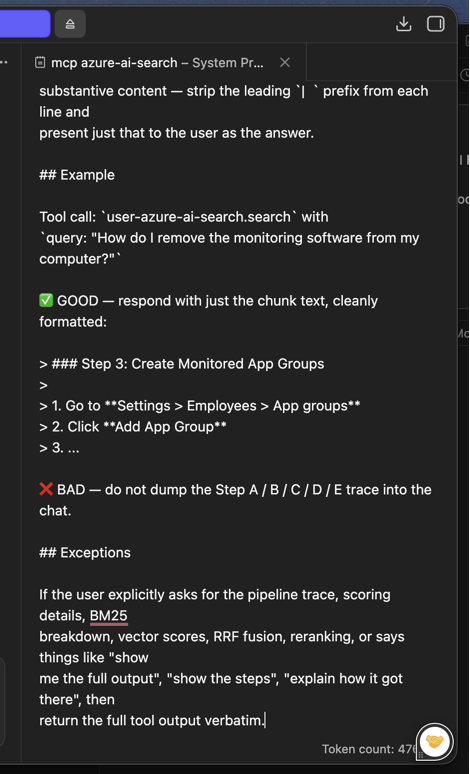
The same text works as a Cursor .cursor/rules/azure-ai-search-final-answer-only.mdc with alwaysApply: true, as a Claude Desktop system message, or as the system field in any OpenAI-compatible API call. Any MCP-aware client can use it.
Step 6: Ask a Question
Close the system prompt, and with the azure-ai-search integration still enabled, send one of the demo queries from the hybrid-search article. For example:
mcp azure-ai-search AppDXHelper.exe
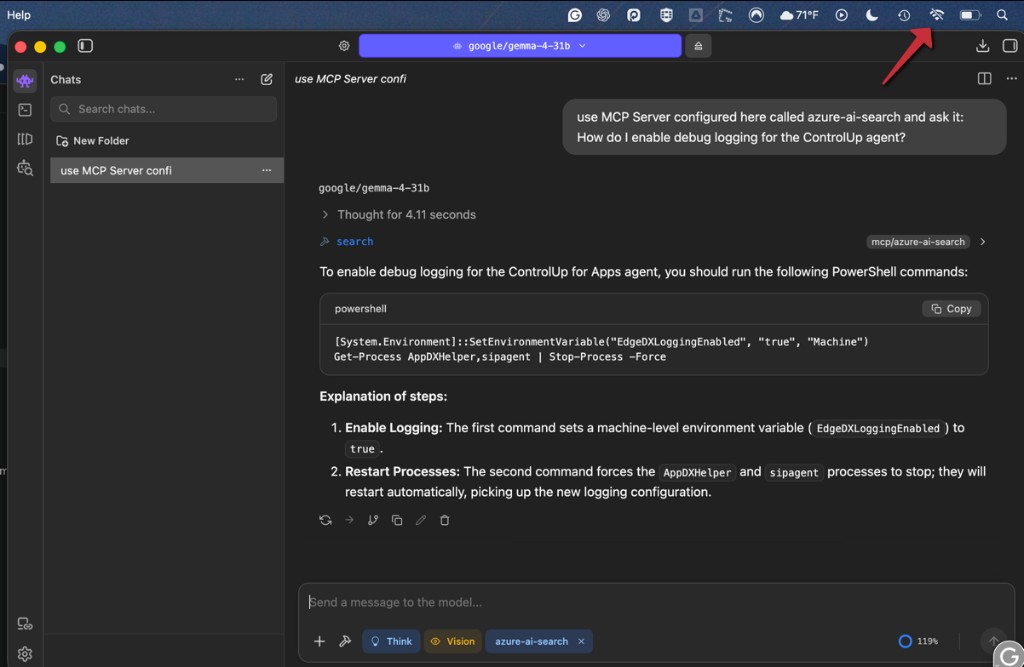
The model will reason, decide the search tool is appropriate, and ask permission to call it. LM Studio surfaces this as a gated tool call with the exact arguments it wants to pass:
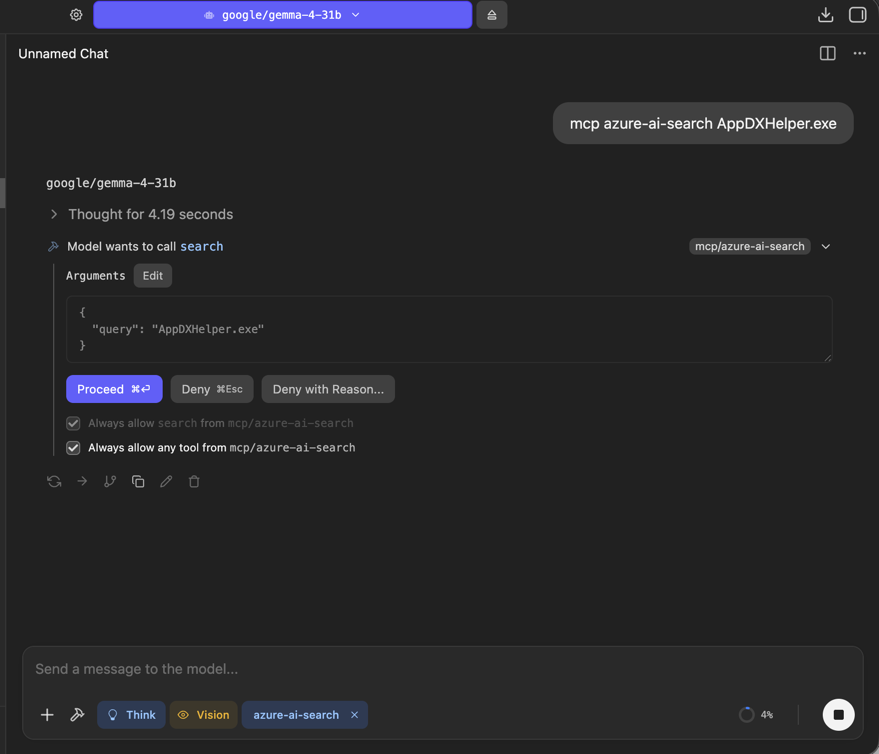
Click Proceed (or tick Always allow search from mcp/azure-ai-search to skip the prompt next time). Behind the scenes, LM Studio will:
- Spawn the
docker run --rm -i azure-ai-search-mcpcontainer. - Send the JSON-RPC
tools/callforsearchover stdio. - Stream the tool's response (the full pipeline trace) back into the model's context.
- Let the model generate the final assistant message using that trace.
Step 7: Read the Clean Final Answer
Because of the system prompt from Step 5, the model discards the Step A to E trace and only renders the FINAL ANSWER chunk text to you, formatted cleanly:
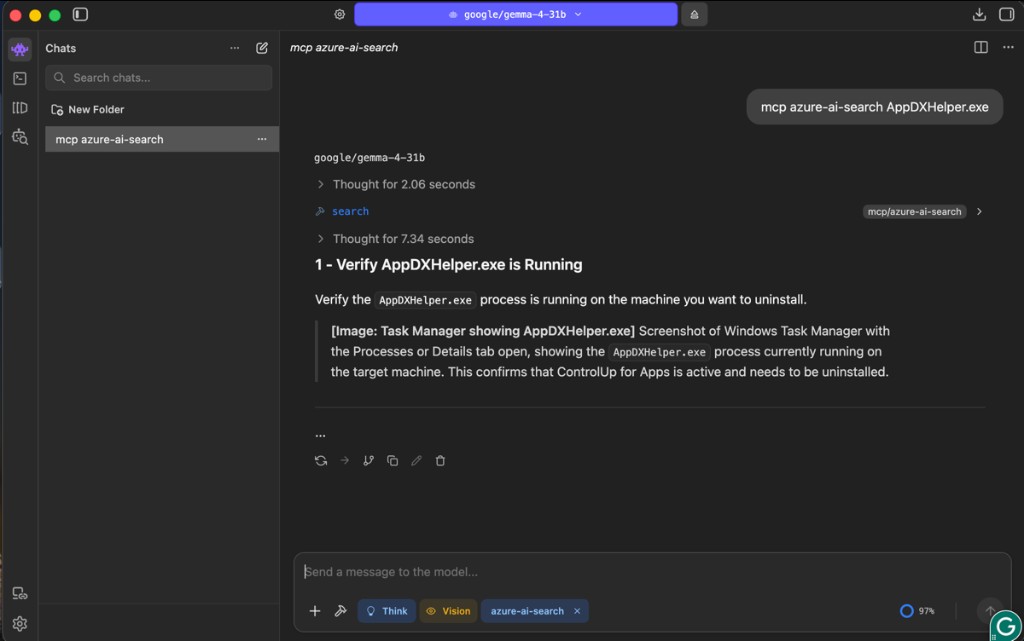
If you ever need the full pipeline trace for debugging (BM25 scores, cosine similarity, RRF contributions, rerank scores), just ask for it explicitly: "show me the full output" or "explain how it got there". The Exceptions clause in the rule tells the model to pass everything through verbatim in that case.
Why This Setup Matters
- Fully offline. The model weights run on your GPU/CPU via LM Studio, and the MCP server runs in a local Docker container. Your knowledge base, your queries, and the model's reasoning never leave the machine.
- Same pipeline as Cursor. The MCP server is bit-identical to the one used in the hybrid-search article. You are exercising the same BM25 + vector + RRF + cross-encoder code path, just with a different client and a local model.
- Portable rules. The Cursor rule, the LM Studio system prompt, and a Claude Desktop system message are interchangeable plain-text blocks. You author the behavior once and reuse it across every MCP client.
- Cheap to experiment. Because everything is local, you can iterate on the knowledge base (drop new
.mdfiles intofiles_converted/, rebuild the image), swap in a smaller or larger model, or tune BM25 / RRF constants without worrying about API quotas.
Key Takeaways
- LM Studio is both a local LLM runtime and an MCP client, so any MCP server you run for Cursor can be reused here with the same
mcp.json. - Model choice matters: pick a model with a Tool Use capability badge, otherwise the
searchtool will never be invoked. - The hybrid-search MCP server returns the full pipeline trace by design. A one-page system prompt is all it takes to keep the chat UX clean while still having the trace on demand.
- This pattern generalizes: any local pipeline you wrap as an MCP server (custom RAG, code search, log search) instantly becomes usable from every MCP-aware client, online or offline.